User Interface
Firmware version: 2.3
Overview
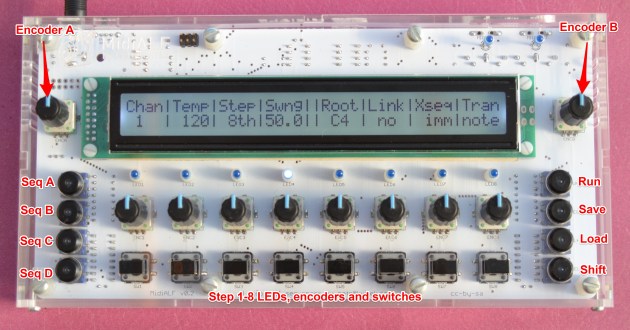
MidiALF user interface is composed of pages. Each page presents up to 8 parameters with abbreviated names and current values.
There are four types of pages: track pages, configuration pages, step pages and command pages.
When MidiALF starts, the first page that is shown is the Note track page. Rotating EncoderB will scroll through other track pages as well as the configuration pages. You can quickly switch to configuration pages and back by clicking EncoderB.
There are six sequence track pages: Note, Velocity, Gate, Length, CC1 and CC2. These pages allow you to control steps’ notes, note velocity, note duration and step’s length as well as step’s CC1/CC2 values by rotating the step encoders. Step switches located below each step encoder toggle step’s mute, accent, legato, skip/jump and CC functions.
Clicking the step EncoderActivates the step configuration mode where you can change the step specific parameters, like step conditions, note re-triggering, randomization etc. In this mode EncoderB switches between step configuration pages. Clicking another step encoder shows the clicked step configuration pages while clicking the currently active step encoder exits the step configuration mode. You can also exit step configuration mode by clicking EncoderB.
Clicking EncoderA opens command pages where you can copy, randomize, rotate, and sysex the selected sequence. Rotating EncoderA selects the command page. Clicking EncoderA again exits command mode.
The switches on the left of the device select the sequences A, B, C and D. Pressing any of these switches selects the corresponding sequence for viewing/editing and playing. If you need to view/edit a sequence other than the one being played, press the corresponding sequence switch while holding down the SHIFT switch at the bottom right switch of the device.
The switches on the right of the device are action switches. These switches allow you to run, save and load sequences. The bottom switch acts as a SHIFT modifier that alters action of other switches and encoders which are operated while the SHIFT is being held.
Track pages
There are six track pages:
- Note page
- Velocity page
- Gate page
- Length page
- CC1 and 2 pages
On these pages:
- Rotating EncoderA changes values on all steps relative to their respective values
- Clicking EncoderA activates command mode
- Rotating EncoderB switches between pages
- Clicking EncoderB switches to configuration pages and back
Note page
EncoderA transposes all notes for all steps. Hold down SHIFT to transpose by octaves.
Step encoders transpose the corresponding step notes. Hold down SHIFT to transpose by octaves.
If no scale is selected in configuration pages (which is the default), the transposition changes by a semitone, consistent with the chromatic scale. If scale is selected the transposition changes by the intervals that conform to the currently selected root note and scale (parameters |Root| and |Scle|).
Step switches mute steps. The muted step’s note is not played, however the step’s length and skip settings are respected and the CC values are sent.
Velocity page
EncoderA changes note velocity for all steps. Hold down SHIFT to transpose by tens.
Step encoders change the step’s note velocity. Hold down SHIFT to transpose by tens.
Step switches toggle the step accent. Accented steps velocity is increased by the amount specified in configuration parameter |Acct|, which by default is 32.
Shifted step switches lock the step note. Locked step notes are not randomized by the Randomize Sequence command and their octave is not affected by |RndO| configuration setting.
Gate page
EncoderA changes step’s notes duration for all steps.
Step encoders change the steps’ note duration.
Default duration is ‘–’ which is half the step’s length.
Step switches toggle “legato” option for the step. Legato note plays until after the next note starts playing.
Length page
EncoderA changes step’s length for all steps.
Step encoders change the steps’ length.
Default step length is ‘–’ which makes the step length to be the same as the sequence step length set in configuration parameter |Step|, which by default is 1/8th.
Step switches toggle step’s “skip” option. Skipped steps are completely ignored, the sequence plays like the skipped steps do not exist.
Shifted step switches toggle step’s “jump” option:
- If there is only one “jump” step in the sequence, the sequence will jump back to the beginning after playing the “jump” step. This allows you to shorten the sequence.
- If there is more than one “jump” step in the sequence, the sequence will play from the first “jump” step to the last one, inclusive. If there are any “jump” steps in between, their “jump” states will be ignored. This allows you to quickly select a portion of the sequence to play.
Note that the “skip” option supersedes the “jump” option.
CC pages 1 and 2
EncoderA changes СС values for all steps. Hold down SHIFT to change values by tens.
Step encoders change the step’s CC value. Hold down SHIFT to change the value by tens.
Step switches toggle “send” CC for the step.
Configuration pages
There are 4 configuration pages in MIDI only MidiALF, and 5 in MidiALF/CV.
On these pages, rotating the step encoder changes the parameter value. The step switch action depends on the parameter value type:
- number – toggle between default and original value that was in effect when the configuration page was shown,
- note/CC# – “learn” the note parameter or CC# from MIDI keyboard connected,
- on/off setting or list of options – toggle setting or cycle through available values.
Configuration page 1
|Chan| – specifies sequencer MIDI channel, 1-16. This is the channel MidiALF receives and sends MIDI events on. Events on all other MIDI channels are passed through unchanged. Press the step switch to activate channel LEARN mode – next note event received on any channel will set the MidiALF channel.
|Temp| – the sequence tempo from 25 to 250 beats per minute. Press the step switch several times to learn the quarter interval.
|Step| – the sequence step duration (from 64th to 2 bars).
|Swng| – the sequence swing value, from 0.1 to 99.9%. Default value of 50.0 means no swing.
|Acct| – accent velocity increment value, default is 32. This is the value that will be added to the note velocity of the accented steps
|Tran| – the sequence transposition mode: none, scale or chromatic, default is scale.
- scale – when a note is received while running, the sequence will be transposed in the direction and by the interval of the received note relative to the sequence root note according to the selected scale.
- chromatic – the sequence will be transposed as if the chromatic scale was selected, e.g. to any note. Be careful with this when playing live.
- none – sequence is not transposed and the received note is passed through. Useful if you want to play notes over the playing sequence and for drum sequences.
|Xseq| – the sequence switch mode: immediate or on sequence end. If the latter is selected, pressing a sequence selection switch on the left of the device while playing will not change the playing sequence immediately. Instead, the selected sequence will start playing when the current sequence plays to its end.
|Link| – the sequence link mode: 4×8, 2×16 or 1×32, allows you to chain sequences so that you have two 16 step sequences or one 32 step sequence.
Configuration page 2
|Dir| – the sequence direction: forward, backward, pendulum or random.
The following 6 settings control non-linear sequence progression parameters borrowed from MIDIBox SEQ v4. Thank you, Thorsten, for allowing me to use these — they are lots of fun to play with!
|Forw| – how many steps to go forward before jumping back or replaying,
|Back| – how many steps to jump back,
|Repl| – how many times to replay the steps above,
|Intv| – interval for the repeat and skip parameters,
|Rept| – how many times to repeat the steps in the interval,
|Skip| – how many steps to skip after the interval,
|Song| – enables Song Mode in which MidiALF automatically plays sequences in the preconfigured order, specified number of times and with selected transposition, see Song Mode.
Configuration page 3
|RndO| – note octave randomization amount and direction (negative, positive or both). Press the step switch to change the direction.
|RndV| – note velocity randomization amount and direction (negative, positive or both). Press the step switch to change direction.
|Root| – sequence root note. This is the note that the sequence will be transposed relative to when receiving a note while the sequence is playing. It also defines the scale note.
Press the step switch to “learn” root note by playing it on the keyboard connected to MIDI IN.
|Scle| – specifies sequence scale. There are 165 scales to choose from, also borrowed from MIDIBox SEQ v4. Thank you, Thorsten, for kindly allowing me to use them.
If a non chromatic scale is selected, all the sequence note changes, including randomizations, will be restricted to that scale.
|CC1| and |CC2| – Control Change number associated with CC tracks 1 and 2. Press the step switch to learn the CC number – the next CC number received on MIDI IN will be accepted as the track’s CC number.
|Rnd1| and |Rnd2| – CC value randomization amount and direction (negative, positive or both). Press the step switch to change the direction.
Configuration page 4
The first three settings allow you to select a bank and a program on the sound source that is controlled by MidiALF The Bank Select and Program Change messages are sent every time the sequence slot is loaded.
|BnkM| – most significant byte of bank number. (CC# 0)
|BnkL| – least significant byte of bank number. (CC# 32)
|PgmC| – Program Change number.
Press corresponding step switches to enable or disable sending bank select and program change messages.
|View| – if set to ‘sync’, the display view will follow the sequence when automatically advancing sequences while playing 16 and 32 step sequences. If set to ‘free’, the viewing sequence will not automatically change and you’ll need to manually switch the viewing sequence by pressing SHIFT + sequence switch. This facilitates editing while playing.
|PrgC| – specifies how the Program Change messages are handled:
- none – PC messages are not sent and passed through when received
- recv – received PC message loads the program it specifies
- send – PC messages are sent when program is loaded
- both – PC messages are both received and sent as described above
|CtlC| – specifies how the Control Change messages are handled:
- none – CC messages are not sent and passed through when received
- recv – received CC messages are handled
- send – CC messages are sent
- both – CC messages are both received and sent as described above
|Clk| – specifies the sequencer clock source, internal or external.
- ext – sync MidiALF to external clock source and transport commands
- int – MidiALF uses internal clock with tempo specified in configuration |Temp| parameter
|COut| – controls the sequencer’s MIDI clock and related events output. Options are:
- ‘none’ — MIDI clock and Start/Stop events are not sent
- ‘when running’ — MIDI clock and Start/Stop events are sent when the sequence is running
- ‘always’ — MIDI Clock and Start/Stop events are always sent
Set this to ‘when running’ or ‘always’ if you want to sync some other MIDI devices to MidiALF’s clock. These typically include other sequencers, arpeggiators, drum machines and rhythmic delays. However, if you don’t have any slave devices, setting this parameter to ‘none’ helps to tighten up output MIDI notes stream by eliminating unnecessary MIDI Clock events.
Setting this to ‘always’ is useful when you are slaving modern sequencers with internal clock resolution higher than 24 PPQN. Such sequencers generate their internal clock by averaging the received MIDI Clock events period instead of just following them. Providing these devices with MIDI Clock before they are actually started helps to have them running smoothly on the clock they are already locked to when the Start event is received.
CV and Gate configuration pages (/CV firmware only)
|CV#| – specifies the CV# source. Available sources are:
- note – note pitch, 1V/Oct
- velocity – note velocity
- cc1/2 – CC1/2 value
- after touch — note or channel after touch value
- pitch bend — pitch bend value
Pressing the step switch below the CV parameter changes the output CV range from 0-10V to -5+5V and back.
|Gt#| – specifies the Gate# source. Available sources are:
- Gate – gate is on when one or more notes are held, off when no notes are held
- Strobe – short pulse is sent every time a note is sent
- Clock – short pulse is sent along with 24 PPQN clock
- Start – the port is on when the sequence is running
- Sequence – short pulse is sent when the first step of a sequence is played
Pressing the step switch below the gate parameter changes the polarity of the gate signal.
Song mode configuration page
This page manages song mode that allows you to build and play songs by specifying the order and play count of the sequences A, B, C and D.
The first row specifies the song step sequence and its play count. If the play count is displayed as ‘–‘, the song step is not played.
The second row specifies the transposition note. If this is set to the sequence root note, no transposition occurs.
Click EncoderA to toggle song mode.
Click the step encoder to select the song step. The selected song step is fully lit. Note that selecting the song step while the sequence is playing activates this song step, allowing you to change song step order on the fly.
Press the sequence switch on the left to select the selected step’s sequence.
Rotate the step encoder to set the step’s sequence play count.
Press the step switch to learn the song step’s sequence transposition note by playing it on the attached MIDI keyboard or by rotating the step’s encoder.
Step configuration pages
Step configuration pages are accessed by clicking the step EncoderAnd selected by rotating the EncoderB.
Step configuration page 1
|Note| – step note
|Velo| – step note velocity
|Gate| – step note duration. If set ‘–’, step note has default duration of half of the step length
|Leng| – step length. If set to ‘–’, step has default step length specified in configuration parameter ‘Step‘
|Cond| – step note condition, if any. The note will not be played if the condition is not met.
|Alt1|, |Alt2| and |Alt3| – alternate step notes and corresponding conditions which if met, will cause the alternate note to be played instead of the primary step note. Rotate step encoder to select the alternate note condition. Please step switch to select the alternate step note.
Step configuration page 2
|Mute|, |Acct|, |Skip|, |Jump|, |Lega| – step states and associated conditions. These same states are controlled by the track pages step switches, however, here you can also specify the associated condition which will change state when the condition is met. Select condition by rotating the step encoder.
|RndN| – step note randomization amount and direction (negative, positive or both).
Rotate the encode to change the note randomization amount.
Press the step switch to change the note randomization direction.
The note randomization amount specifies the number of scales that are included in the randomization range. If no scale is selected, which is equivalent to the chromatic scale, the note randomization amount is equivalent to the number of octaves because the chromatic scale contains 12 notes. If the natural minor scale is selected, the note randomization amount unit is 7 notes – equivalent to the number of notes in the natural minor scale
|Cond| – step note randomization condition. If set, the note will be randomized only if the condition is met.
Step configuration page 3
|Trig| – step note retrigger (ratchet). If set to N, the step note will be played N times within the duration of the step.
|Gate| – specifies the retriggered note duration.
|Cond| – specifies the condition that has to be met for the step’s note to retrigger.
|Tran| – specifies the number of semitones (or scale steps) to be added to (if positive) or subtracted from (if negative) each re-triggered note value.
|Velo| – specifies the velocity increment added to (if positive) or subtracted from (if negative) each re-triggered note velocity value.
Step configuration page 4
[CC1]. [CC2] – specify step’s CC1 and CC2 values.
[Cond]. [Cond] – specify step’s CC1 and CC2 conditions which need to be met for the CC value to be sent.
Command mode pages
Click EncoderA to enter command mode. Rotate EncoderA to select a command page. Click EncoderA again to leave the command mode.
Copy sequence
Copies currently selected sequence to another sequence. Press the blinking sequence switch on the left of the device to select the target sequence.
Randomize sequence
Randomizes current sequence notes according to the selected scale.
Rotate EncoderB to select the scale. Click EncoderB to randomize the sequence. Note that if the sequence has 16 or 32 steps, then all steps in the sequence will be randomized, not just the ones displayed.
Rotate step encoder to select the next or previous note in scale.
Press the step switch to randomize this step note only.
Press the step switch while holding down the SHIFT switch to toggle step node Lock flag which prevents this step note from being randomized when EncoderB is clicked.
Rotate sequence
Rotates steps of the sequence. Press the step switch to make this step the first step of the sequence.
If the sequence is a linked sequence with 16 or 32 steps, use SHIFT+Seq switch to select the sequence part you are looking at.
Initialize sequence
Initializes sequence steps.
Click EncoderB to initialize the entire sequence.
Note that if the sequence has 16 or 32 steps, then all steps in the sequence will be initialized, not just the ones displayed.
Press the step switch to initialize this step only.
Sysex slot [Send]
Send all 4 sequences in the selected slot as SysEx.
Rotate EncoderB to select the slot to send. Click EncoderB to send the selected slot.
Sysex all slots [Send]
Send all slots as a group of SysExes. Click EncoderB to start sending. Click EncoderB again to cancel sending.
Sysex note CVs tune data (/CV firmware only)
Send note CVs tune data as a SysExes. Click EncoderB to start sending.
Tune note CVs (/CV firmware only)
Click EncoderB to open the Note CV Tuning page.
Note CV Tuning page (/CV firmware only)
By default, MidiALF pitch CVs are tuned to produce 1V/Oct scale. You can adjust the CV for each and every note to produce any CV value in the supported range.
Rotating EncoderA moves all CV values up or down. Clicking EncoderA allows resetting the entire tuning table.
Rotate EncoderB to select the range of notes you are viewing. Click EncoderB to leave Note CV Tuning page.
Rotate step encoder to change this step’s note tuning. Press the step switch to interpolate this step note tuning.
Save and Load pages
Snapshot of the entire MidiALF state can be saved in one of the 64 memory slots for later recall. Saving and loading is fast enough to not disturb playback if done while playing.
Press the Save switch on the right to save the current state.
Rotate EncoderB to select target slot.
Rotate Step1 encoder to select slot name character cursor position.
Rotate Step2 encoder to change the character at the current cursor position.
Rotate Step3 encoder to jump to the next character group: lower case, upper case, digits, etc.
Press Step1 switch to insert a character at the current cursor position.
Press Step2 switch to delete a character at the current cursor position.
Click EncoderB or Save switch to confirm save, or Step8 encoder to cancel save.
Press Load switch on the right to load a previously saved state. Rotate EncoderB to select the source memory slot. Loaded state will overwrite the current state of MidiALF.
Double click the Save switch to quickly save the current state to its memory slot.
Double click the Load switch to quickly load the saved state from its original slot, thus reverting all the changes made since it was loaded.
Conditions
Conditions allow you to specify criteria that allows something to happen (or not to happen) during sequence playback. For example, adding a condition to a step note will define if this step note will be played each time or some other time, or randomly. Same for CC value to be sent, or step note retrigger to occur. This adds a controlled or random variance to the selected aspects of the sequence playback, allowing you to create more dynamic thus less boring sequences.
MidiALF Conditions were modeled after famous Elektron’s Trig Conditions. Whoever invented them at Elektron is a genius. This invention made the whole concept of sequencing a lot more interesting musically. Thank you, Elektron!
Here are all the conditions available in MidiALF:
- |SHF| – SHIFT switch is pressed. Allows you to use the SHIFT switch to control conditioned events. For example, play a step note only when the SHIFT switch is pressed.
- |!SHF| – SHIFT switch is not pressed. Allows you to use SHIFT switch to prevent conditioned events from occurring.
- |PRE| – triggers if the previous condition evaluated since the start of the sequence was triggered. Allows you to chain conditioned events. For example, if the previous random note has played, the one with PRE condition will be played too.
- |!PRE| – triggers if the previous condition evaluated was not triggered. Allows you to chain conditioned events in an inverted manner. For example, if the previous random note has played, don’t play this one.
- |1ST| – the conditioned event occurs only when the sequence is being played for the first time.
- |!1ST| – the conditioned event occurs only when the sequence is being played for the second, third and all other times.
- |M:N| – the conditioned event occurs on Mth out of N plays of the sequence . For example, if set to 1:4, the event will occur when the sequence is played first out of four times only. Often used to add or remove notes on each second (2:2) or fourth (4:4) repetition of a sequence. Fun with uneven settings like 1:3 or 2:5 applied over 4 repetitions patterns.
- |NN%| – the conditioned event occurs randomly with probably NN percent. For example, if a sequence is played 100 times, the event will occur approximately NN times, evenly distributed over 100 times. Following NN% with PRE conditions is a common way to add random animations to a sequence.
Sequence recording mode
Press SHIFT+RUN to activate sequence recording mode. Press SHIFT+RUN again to deactivate.
While in sequence recording mode, MidiALF records incoming notes, their velocity, legato and CC1/2, advancing sequence steps automatically.
This is a great way to quickly create sequences by playing them on the attached MIDI keyboard. Playing chords often produces some interesting results.
Useful shortcuts
SHIFT+EncoderA – show the most recently used track page.
SHIFT+EncoderB – silence all notes. Useful if you have stuck notes.
SHIFT+SeqX – changes viewing/editing page while keeping the playing page,
SHIFT+RUN – toggles sequence recording mode.
SHIFT+Encoder – rotation increases the step by 10 or 12 if note parameter is selected.
Double click Save Seq switch to quickly save the current sequence into its original slot.
Double click Load Seq switch to quickly load the current sequence from its slot discarding all changes made since it was last loaded.
Hold down EncoderA while powering up MidiALF to enter firmware update mode.
Hold down EncoderB while powering up MidiALF to force full device initialization.
Advanced features
Control Change messages
MidiALF recognizes and sends the following control messages:
| CC | Value | Action |
| 106 | 0-3 | Set sequence |
| 107 | 0-3 | Set direction |
| 108 | 0-3 | Set link mode |
| 109 | 0-20 | Set step length |
| 110 | > 0 | Increase tempo |
| 111 | > 0 | Decrease tempo |
| 112 | BPM / 2 | Set tempo |
| 113 | > 0 | Toggle run mode |
| 114 | > 0 | Stop sequencer |
| 115 | > 0 | Start sequencer |
| 116 | > 0 | Toggle recording mode |
| 117 | > 0 | Stop recording |
| 118 | > 0 | Start recording |
| 119 | 0-1 | Set sequence switch mode |
Firmware update
MidiALF firmware update steps:
- Backup your sequences to ф sysex file using the Sysex All Slots command.
- Connect your MIDI interface output to MidiALF MIDI IN
- Power on MidiALF while holding down the EncoderA. MIDI LEDs will blink shortly then MIDI IN LED will stay steadily lit. The display will remain blank or contain a line of box characters.
- Send firmware update sysex file (*.syx) to your MIDI interface port with 250ms delay between sysex buffers. Elektron’s C6 works great on OS X and Windows. Classic MIDI-OX is also good on Windows. MIDI LEDs will blink while firmware sysex is being received.
Firmware update takes a couple of minutes, MidiALF will automatically reset when the update is done.
Check the version number displayed on MidiALF startup page.
Most firmware updates do not require MidiALF memory to be reset. However, if you don’t find your sequences after a firmware upgrade, reset the device and restore its state by sending the sysex backup you created at step 1 to MidiALF MIDI IN.
Device reset
Power on MidiALF while holding down EncoderB to reset it to initial state. Note that this will wipe out device memory without any confirmation. Use this to restore MidiALF operation as the last resort.
 MidiSizer